

Creating a Job
Creating a job is the first step to hiring. You define the role, build the application form, set up the hiring pipeline, and assign reviewers — all in one place.
Jobs list
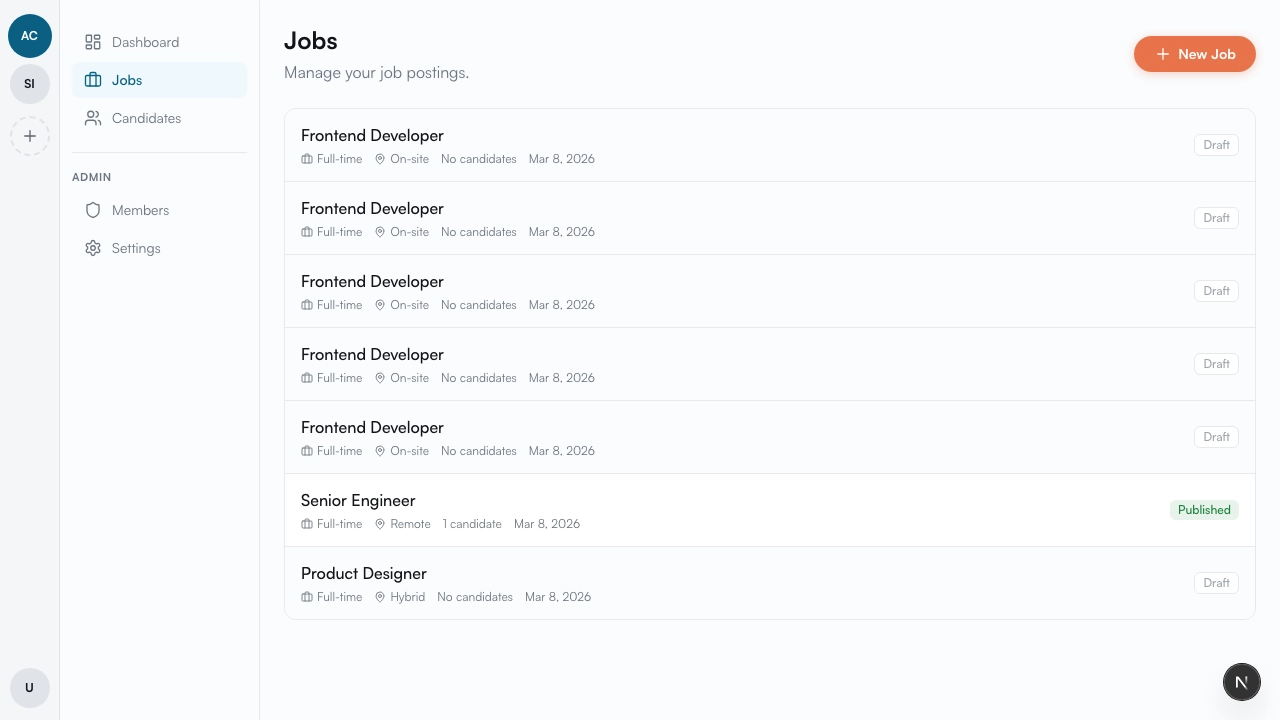
Section titled “Jobs list”On the Jobs page you’ll see all your organization’s jobs. The New Job button in the top right takes you to the creation page.
Create a new job
Section titled “Create a new job”-
Click “New Job”
Opens the job creation page.
-
Fill in the title
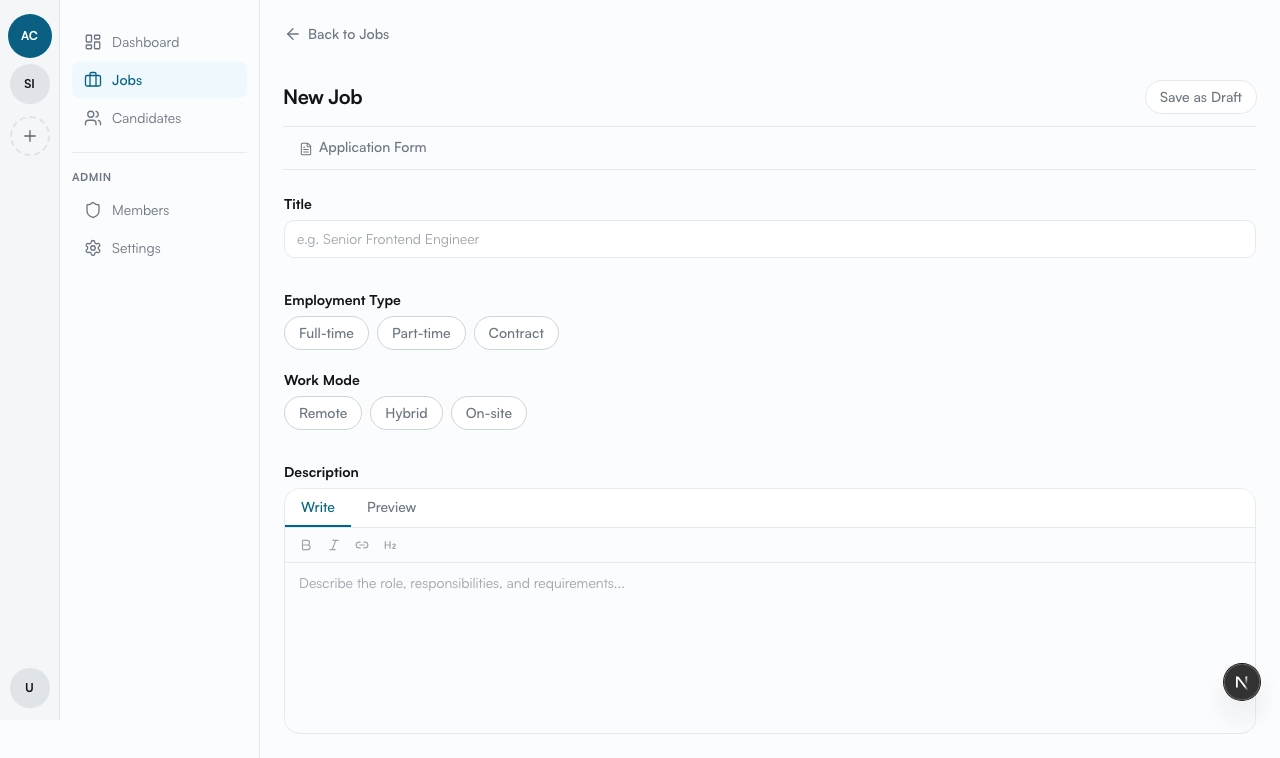
The title is required. It auto-generates a URL slug for the public job page.
-
Select employment type
Choose from: Full-time, Part-time, or Contract. Optional for drafts.
-
Select work mode
Choose from: Remote, Hybrid, or On-site. Optional for drafts.
-
Write the description
A Markdown editor for role details. Optional for drafts.
-
Customize the application form
Click the Application Form button to open the side panel. Covered in detail on the next page.
-
Save as Draft
Click Save as Draft. The job is created and you’re redirected to the edit page.
After saving
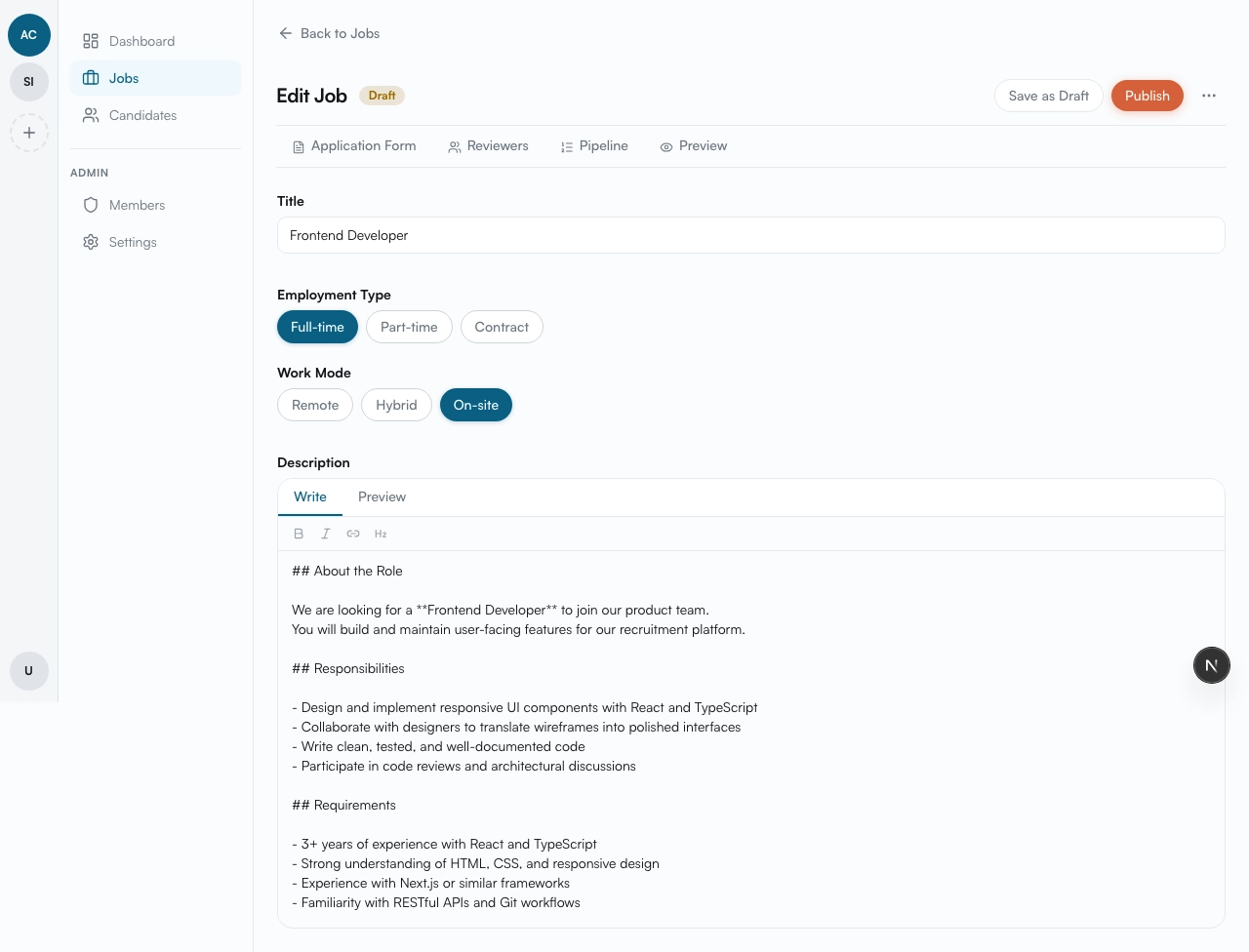
Section titled “After saving”Once you save as draft, the edit page shows additional buttons:
- Application Form — customize what candidates submit
- Pipeline — configure hiring steps
- Reviewers — assign team members
- Preview — see the public job page
- Publish — go live (covered on the Publishing & Managing page)
Draft vs publish requirements
Section titled “Draft vs publish requirements”| Draft | Publish | |
|---|---|---|
| Title | required | required |
| Description | optional | required |
| Employment type | optional | required |
| Work mode | optional | required |
What’s next
Section titled “What’s next”Next up is customizing the application form — read Application Form Builder.