

Application Form Builder
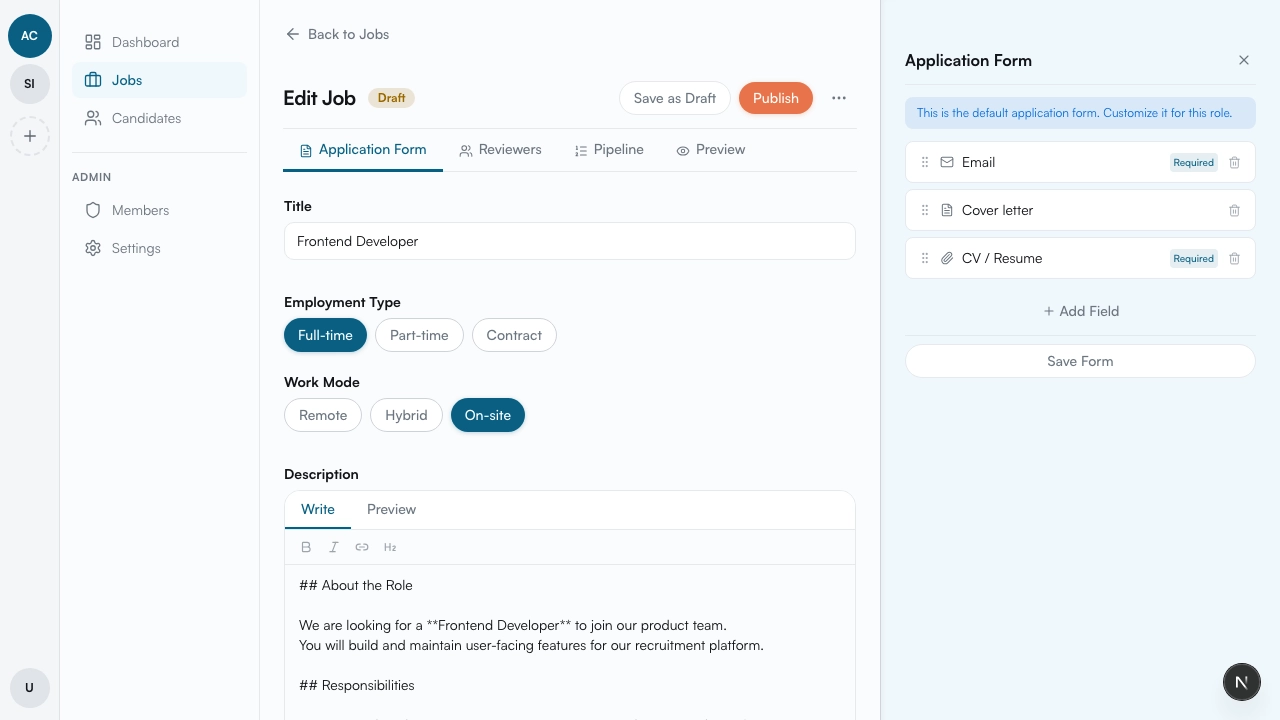
The application form defines what candidates fill out when they apply to a job. It comes with email and full name by default — from there, customize it to fit your needs.
Opening the builder
Section titled “Opening the builder”On the job edit page, click the Application Form button. A panel opens on the right side with the form builder.
Default fields
Section titled “Default fields”Every application form includes two required fields:
| Field | Required | Removable |
|---|---|---|
| yes | no | |
| Full name | yes | no |
These fields are always present and cannot be removed — a candidate can’t apply without them.
Customizing the form
Section titled “Customizing the form”Reordering fields
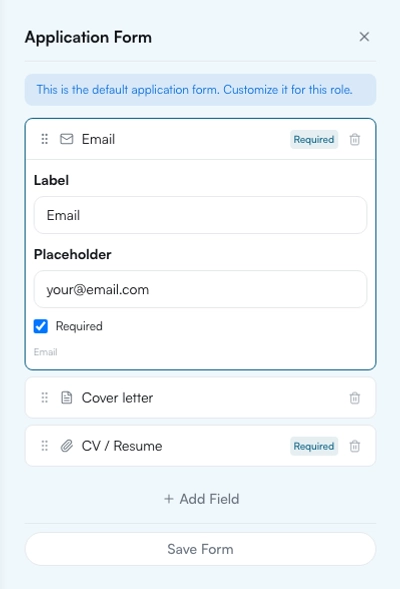
Section titled “Reordering fields”Drag and drop fields to reorder them however you like. The order you set is the order candidates see when filling out the form.
Editing field settings
Section titled “Editing field settings”Click on a field to expand it. From there you can change the label, set a placeholder text, and toggle whether the field is required or optional.
Adding and removing a CV
Section titled “Adding and removing a CV”You can add a CV upload field to the form. If you don’t need it, you can remove it as well.
Adding a cover letter
Section titled “Adding a cover letter”Add a cover letter field if you want candidates to write a motivation text alongside their application.
Additional text fields
Section titled “Additional text fields”Add additional text fields to ask candidates specific questions. For example:
- “Describe your experience with project management”
- “How many years of sales experience do you have?”
- “Why are you interested in this role?”
You can add multiple text fields — each with its own label and question.
Saving changes
Section titled “Saving changes”When you’re done customizing, click Save Changes at the bottom of the panel. Your form updates are saved immediately and visible when you click Preview on the job edit page — so you can check exactly what candidates will see before publishing.
What’s next
Section titled “What’s next”Once the application form is ready, set up the hiring pipeline — read Pipeline Configuration.